Jul 25, 2018

Implementing oAuth with Apigee


<?xml version="1.0" encoding="UTF-8" standalone="yes"?>
<OAuthV2 async="false" continueOnError="false" enabled="true" name="OAuth-v20-1">
    <DisplayName>OAuth v2.0-1</DisplayName>
    <Properties/>
    <Attributes/>
    <ExternalAuthorization>false</ExternalAuthorization>
    <Operation>VerifyAccessToken</Operation>
    <SupportedGrantTypes/>
    <GenerateResponse enabled="true"/>
    <Tokens/>
</OAuthV2>


Now this is protected by oAuth on server so we need service to generate oAuth token. Create a product that exposes this API and App that has access to this Product. Note the Client id and Client secret of this Developer app and get the Base64 encoded value of string <client_id>:<client_secret>.
Set this value in Basic authorisation as shown.


<?xml version="1.0" encoding="UTF-8" standalone="yes"?>
<OAuthV2 async="false" continueOnError="false" enabled="true" name="OAuth-v20-1">
    <DisplayName>OAuth v2.0-1</DisplayName>
    <ExpiresIn>180000</ExpiresIn>
    <Operation>GenerateAccessToken</Operation>
    <SupportedGrantTypes>
        <GrantType>client_credentials</GrantType>
    </SupportedGrantTypes>
    <GrantType>request.header.grant_type</GrantType>
    <GenerateResponse enabled="true"/>
</OAuthV2>

Now send a request for oAuth from postman as


Note down the token returned by this call and set it in header while sending request to actual API.


Congratulations...you were able to get the response from API that is protected by oAuth.

Jun 7, 2018

Cron Expressions for Spring Boot


List of few important cron expressions we can use with @Scheduled annotation.

Cron expression is made up of six characters
First ==> second :) interesting ;) its unit and not the position second
Second ==> minute
Third ==> hour
Fourth ==> date
Fifth ==> month
Sixth ==> year? hmm...no its for day of week. :)

Following are some handy expressions you may want to use for your scheduled jobs.

* * * * * *      ==> Every second any Minute, any Hour, any Hour, any Date, any Month, any Day

0 * * * * *      ==> When second is zero (i.e. Every minute) any Hour, any Date, any Month, any Day

*/5 * * * * *   ==> Every five seconds any Hour, any Date, any Month, any Day (i.e. 00:00:00, 00:00:05, 00:00:10 .... 23:59:55)

0-1 * * * * *   ==> Every zeroth and first second of minute any Hour, any Date, any Month, any Day (i.e. 00:00:00, 00:00:01, 00:01:00, 00:01:01 .... 23:59:00, 23:59:01)

5,10,15 * * * * *   ==> Every fifth, tenth and fifteenth seconds of minute any Hour, any Date, any Month, any Day (i.e. 00:00:05, 00:00:10, 00:00:15, 00:01:05 .... 23:59:05, 23:59:10, 23:59:15)

5,10,15 * * * * THU   ==> Every fifth, tenth and fifteenth seconds of minute of every Thursday any Hour, any Date, any Month (i.e. 00:00:05, 00:00:10, 00:00:15, 00:01:05 .... 23:59:05, 23:59:10, 23:59:15)

5,10,15 * * * * MON,TUE,THU   ==> Every fifth, tenth and fifteenth seconds of minute of every Monday, Tuesday and Thursday any Hour, any Date, any Month (i.e. 00:00:05, 00:00:10, 00:00:15, 00:01:05 .... 23:59:05, 23:59:10, 23:59:15)

5,10,15 * * * * MON-FRI   ==> Every fifth, tenth and fifteenth seconds of minute of every Monday to Friday any Hour, any Date, any Month (i.e. 00:00:05, 00:00:10, 00:00:15, 00:01:05 .... 23:59:05, 23:59:10, 23:59:15)

* 40 22 * * *  ==> Every second at 22:40 (i.e. 10:40 PM) any Hour, any Date, any Month, any Day

0 40 22 * * *  ==> Only once at 22:40:00 any Day, any Month, any Day

0 30 * * * *    ==> Only once at half past of each hour any Hour, any Date, any Month, any Day (i.e. at 00:30, 01:30 .... 23:30)

0 */10 * * * * ==> Once once at every ten minutes any Hour, any Date, any Month, any Day

0 */10 0 * * * ==> Once once at every ten minutes, zeroth Hour, any Date, any Month, any Day

0 0 1 * * * ==> When month changes (welcome salary)

0 */10 0 1 * * ==> Once once at every ten minutes, zeroth Hour, first of each month, any Month, any Day

Now some fun items...

0 0 0 15 8 * ==> Every year on 15th August midnight (to welcome independence day)

0 0 0 25 12 * ==> Welcome christmas

0 0 0 1 1 * ==> Happy new year

0 30 6 * * MON-FRI ==> Wake up on working days

0 30,35 6 * * MON-FRI ==> Wake up on working days with 5 minute snooze.

0 0 6 * * SAT,SUN ==> Weekend of traveller

0 30 7 * * SAT, SUN ==> Normal weekends


Apr 26, 2018

Springboot: Running Application on Https with Java keystore

Consider Source code available on my git repository https://github.com/mitanjos/sping4hibernate5.git. If I run this application with default profile, it will run on http port 8000


and can be accessed as url http://localhost:8000/api/v1/category


Now we want to ensure that this port is exposed as https service and will require client to have appropriate keystore to trust response sent by our service.

So first we generate keystore using java keygen tool as follows.

Run command

keytool -genkeypair -alias selfsignedcert -keypass password -keystore myapi.keystore -storepass password -validity 180

and provide required details as prompted.


For the sake of simplicity I have added generated file in resources.

Now we want to add this file in our server configuration. To achieve that you need to set following properties in spring boot startup configuration.


server.ssl.key-store = classpath:myapi.keystore
server.ssl.key-store-password = password
server.ssl.key-password = password


So we create a separate file (to dynamically chose between normal run and running application under https with keystore we have just created). Refer application-secure.properties here in the repository.

Now we run the same application with parameter -Dspring.profiles.active=secure so that system will pickup application-secure.properties and start listening to port 8443 on https protocol.


Now if you try to curl it normally it will give error as ssl handshake will fail.


In the next blog we will configure this keystore with Feign client to access this REST endpoint.

Apr 23, 2018

Maven configuration for Jenkins

Go to Jenkins home at http://localhost:8080/ and in right menu click on "Manage Jenkins" then click on "Global Tool Configuration"


Go to Maven section and click on "Maven Installation"


Select checkbox "Install Automatically"
Select option "Install from Apache"
Click on "Add Maven"


101 of Jenkins on Mac OS: First Job setup

Once we have completed Jenkins Installation on local machine as explained in previous blog. Go to http://localhost:8080/ and if no jobs are configured it will show you screen as follows.

Click on "Create New Job" --> Provide name for this Job and select type of project as "Free Project" and click on "Ok"


On next screen do as following

Under General tab provide description.
In "Source Code Management" select "Git" and provide "Repository URL" (here I have used my git project available at url https://github.com/mitanjos/sping4hibernate5.git (this is a SpringBoot project with H2 database and Maven as build tool) and branch as master.
Not selected any trigger for basic project.


Under build section select "Invoke top-level Maven targets"


Select Maven version and provide maven task to be executed.
If you do not have any option in dropdown and you want to create new configuration follow steps as explained here.

Once that is done click on "Save" button and it will create your first job.


Next click on "Build Now" to run a new build for this project and it will schedule a first build for this project. Click on the build number (in this case #1 and on the next page click on "Console output" and will show you build logs.

If you click on "Jenkins" icon (Home) it will show you "Dashboard" of all your projects (here only one project and only first build"


Thats all for this step.

Apr 17, 2018

BrainTree Integration with REST services

First Create your account on BrainTree sandbox.
Will send you an activation email --> Click on the activation link and activate your account.
Notedown following important information

  • merchantid
  • public key
  • private key
And configure in your project. In my case I have configured them as environment variable. In production ensure its encrypted.

Add following dependency in your project

Create a controller class

And a service class

List of nonce are available here

Perform few transactions like following
http://localhost:8000/v1/api/braintree/transaction?amt=130&nonce=fake-valid-visa-nonce
http://localhost:8000/v1/api/braintree/transaction?amt=34&nonce=fake-valid-dinersclub-nonce

On Braintree Transaction Summary page you can see these transactions reflected.

Or you can check transactions


Apr 11, 2018

101 of Jenkins on Mac OS: Setup


Environment Setup

  • Downloaded Jenkins for MacOS
  • Command to Start Jenkins: sudo launchctl load /Library/LaunchDaemons/org.jenkins-ci.plist
  • Jenkins installation directory is /Users/Shared/Jenkins/
  • Note that to get the admin password you need to use sudo su
  • Initial Admin password is at /Users/Shared/Jenkins/Home/secrets/initialAdminPassword
  • Now hit the url http://localhost:8080/ and it will ask for initial admin password.  Provide initial password.  Will provide options to chose from
  • Once required plugins are installed it will show screen to create first admin user. Provide required details to create admin user

Next: Create your first Job


Jan 17, 2018

Notes on Microservice Architecture

What is microservice

  • Service that solves single business purpose. (S of SOLID principal). Keep slicing till you get the answer "nothing" for question "What else it is doing?"
  • Can be developed independently
  • Can be deployed independently.
  • Decoupled from rest of the world :)

Why microservice
  • Since developed independently development is faster.
  • Since deployed independently CI/CD is easy and so is agile and TDD etc.
  • In a way more secure as loophole in one functionality can not be exploited for other functionalities
  • Uptime is increased as problem is localised.
  • Scalability is better as scaling up or out is done for specific service that really requires it and not for entire monolith.
  • Greater flexibility to development teams in terms of choice of technology etc.
  • In terms of cloud more appropriate type of environment can be selected for deployment (say type of EC2 instance)

Features of MSA
  • High cohesion
  • Autonomous
  • Business Domain Centric
  • Resilient
  • Observable
  • Automation

Components involved (with example in Spring cloud)

Feb 5, 2017

Spring Boot application with Spring Data JPA

In this blog We will build a small REST based service to manage users for a larger application with following Technology Stack

  • Windows 7
  • Spring Tool Suit (STS) IDE
  • MySQL DB
  • Spring Boot (1.5.1)

Create Project

Lets start with creating a Spring Boot project. Easiest way to create this project is go to Spring Initializer website. For this project we are generating artifacts with following

Group: com.techcielo.myapp
Artifact: usermanager

Also we will search and add following Dependencies
JPA, Web


Now click on Generate project and project will be downloaded on local machine. Extract and Import this project in your STS workspace.


STS will download required libraries and build the initial project. One all download is completed right click on project ==> Maven ==> Update Project. It will remove all dependency related issues and build you a clean Maven project with Spring Boot, Spring Data JPA and Hibernate dependencies.

Configurations

Since Spring Boot is still not aware of what DB we want to use this project, is yet to have any libraries/configuration related to MySQL so once the project is build we will create configuration file application.yml in src/resources folder and provide following MySQL configuration. (Spring Boot by default creates application.properties you may want to delete it)

application.yml

spring:
  datasource:
    url: jdbc:mysql://localhost:3306/test
    username: root
    password: 
    platform: mysql
    initialize: false
  jpa:
    database-platform: org.hibernate.dialect.MySQLDialect


We also edit pom.xml and add dependency for MySQL java connector.

<dependency>
<groupId>mysql</groupId>
<artifactId>mysql-connector-java</artifactId>
</dependency>

We are yet to create services but before that we will create DB for our operations

CREATE TABLE IF NOT EXISTS `user_mst` (
  `id` int(11) NOT NULL AUTO_INCREMENT,
  `first_name` varchar(50) NOT NULL,
  `last_name` varchar(50) NOT NULL,
  `is_active` tinyint(1) NOT NULL,
  PRIMARY KEY (`id`)
)

Create Java Classes

Now lets create Entity class for this table as follows.

And a repository to access this entity.

We also create a REST controller to  access this Business entity.

Run the project

Once these classes are created right click on Generated App class (in this case UsermanagerApplication.java) ==> Run As ==> Java application.
It will start inbuilt Tomcat server and make REST services available on port 8080. You can see certain REST urls in logs as shown below.

2017-02-04 20:54:36.422  INFO 9316 --- [           main] s.w.s.m.m.a.RequestMappingHandlerMapping : Mapped "{[/user/all],methods=[GET]}" onto public java.util.List<com.techcielo.myapp.bean.UserBean> com.techcielo.myapp.controller.UserController.getAllUsers()
2017-02-04 20:54:36.423  INFO 9316 --- [           main] s.w.s.m.m.a.RequestMappingHandlerMapping : Mapped "{[/user/],methods=[POST]}" onto public com.techcielo.myapp.bean.UserBean com.techcielo.myapp.controller.UserController.createUser(com.techcielo.myapp.bean.UserBean)
2017-02-04 20:54:36.425  INFO 9316 --- [           main] s.w.s.m.m.a.RequestMappingHandlerMapping : Mapped "{[/error]}" onto public org.springframework.http.ResponseEntity<java.util.Map<java.lang.String, java.lang.Object>> org.springframework.boot.autoconfigure.web.BasicErrorController.error(javax.servlet.http.HttpServletRequest)
2017-02-04 20:54:36.425  INFO 9316 --- [           main] s.w.s.m.m.a.RequestMappingHandlerMapping : Mapped "{[/error],produces=[text/html]}" onto public org.springframework.web.servlet.ModelAndView org.springframework.boot.autoconfigure.web.BasicErrorController.errorHtml(javax.servlet.http.HttpServletRequest,javax.servlet.http.HttpServletResponse)
2017-02-04 20:54:36.454  INFO 9316 --- [           main] o.s.w.s.handler.SimpleUrlHandlerMapping  : Mapped URL path [/webjars/**] onto handler of type [class org.springframework.web.servlet.resource.ResourceHttpRequestHandler]
2017-02-04 20:54:36.454  INFO 9316 --- [           main] o.s.w.s.handler.SimpleUrlHandlerMapping  : Mapped URL path [/**] onto handler of type [class org.springframework.web.servlet.resource.ResourceHttpRequestHandler]
2017-02-04 20:54:36.497  INFO 9316 --- [           main] o.s.w.s.handler.SimpleUrlHandlerMapping  : Mapped URL path [/**/favicon.ico] onto handler of type [class org.springframework.web.servlet.resource.ResourceHttpRequestHandler]
2017-02-04 20:54:37.045  INFO 9316 --- [           main] o.s.j.e.a.AnnotationMBeanExporter        : Registering beans for JMX exposure on startup
2017-02-04 20:54:37.489  INFO 9316 --- [           main] s.b.c.e.t.TomcatEmbeddedServletContainer : Tomcat started on port(s): 8080 (http)
2017-02-04 20:54:37.497  INFO 9316 --- [           main] c.t.myapp.UsermanagerApplication         : Started UsermanagerApplication in 22.065 seconds (JVM running for 27.429)

Test your application

Now first we create few users with POST requests using POSTMAN or RESTClient. I am using RestClient from Mozilla Firefox.

Set
Custom Header "Content-Type:application/json",
Method:POST
URL:http://localhost:8080/user/
Body: {"firstName":"Keyur","lastName":"Joshi","isActive":true}


Now send this request and you will get response as shown below.


Now send GET request by RestClient or use url in browser to check if POST call has successfully added User in DB or not.


Aug 11, 2016

Basic SSIS

Mainly used for ETL (Extract Transform Load) implementation. Consider an Example of loading data from a flat file to DB.

Start SQL Server Data Tools for Visual Studio (Community edition in my case)


In this blog we will simply load data from one csv file to DB. We will use file available from Indian stock market called Bhavcopy which gives data about stokes for a day. I am using file available here

Create new project in tool as File à New à Project (Ctrl + Shift +N). Select integration Services Project


Give a name to this project (in my case TestStockPriceLoad) and Click OK. 


Now we will need to connect to two endpoints one for source (Flat file) and another for target (SQLServer DB). Here we have two favourite task

  • Data flow task 
  • Execute SQL task

Since we want to transfer data from Source to Destination we are selecting Data flow task. Later in this article we will use Execute SQL task to clean data in temporary table before we load data from flat file. So first thing first we create Data Flow Task by dragging it in Package design window from SSIS Toolbox pan.


Now we create Connection Managers to be used in Data Flow Task. So right click on Connection Managers and select New Connection Manager.


Select FLATFILE from options and click Add button.


Give appropriate name for this connection manager and select File location.


Then click to Columns option, it will show you what data is there in CSV file. Since we do not want to change anything in this case we will simply click Ok 

Now before we create connection manager for target we create a table to store values. For this tutorial we want to load only first 4 columns so we create table with following SQL query.

CREATE TABLE [dbo].[TMP_SCRIP_NSE](
[SCRIP_CODE] [varchar](15) NOT NULL,
[SCRIP_NAME] [varchar](50) NOT NULL,
[SCRIP_GROUP] [varchar](3) NOT NULL,
[SCRIP_TYPE] [varchar](3) NOT NULL
)

Now by following similar steps we create Connection Manager for OLEDB and select table created in last step.

Now double click on Data Flow Task and it will take you to Data Flow tab (alternately click on Data Flow Tab directly).

In this tab from SSIS Tool box panel drag "Flat File Source" to Data Flow tab and similarly drag and drop "OLE DB Destination".


It will show error and that we will fix in next step. Double click on Flat File Source and go to Columns and simply close it as we do not want to change anything for now. Once done it will Red error icon will disappear from Source block. Now drag Blue arrow from source and connect it to destination.


Now double click on target and from "Name of the table or the view" drop down select table we created previously.

Click on Mappings and map source and target columns as shown.


This will give a warning regarding truncation as source has all default column width. In order to remove this again go to CSV Connection Manager and set width in Advanced tab as follows.


When you try to save these changes it will ask you if you want to update metadata. Select Yes and save the project. Upon Saving the project Warning will go away.

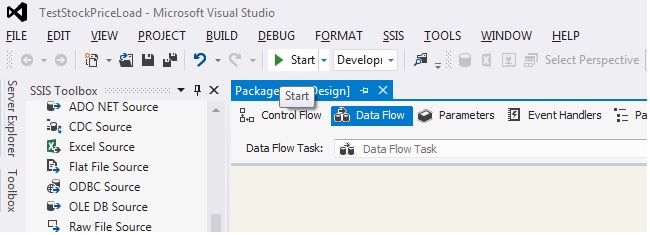
Now run this package either by clicking F5 or by clicking on Start button.


It will build and run the project and show results as shown below.


Alternately you can run SQL query in SQL Server Management Studio and verify if data is loaded correctly or not.

Jul 7, 2016

Basic Spark operations

Here are few basic spark operations like filtering, grouping etc.
Ensure following is set in argument
-Xms128m -Xmx512m

Jun 28, 2016

Scala code for Twitter Stream reader with Apache Spark

Following is the code that finally worked for me. It reads twit containing word Brexit and saves information in file.

So something more serious, may be later.

Jun 26, 2016

Spring Batch with Spring integration

One way is explain in Spring Documents but if we want greater control and if customizations are required following another way.

In this blog we want to achive following.

At a high level

  • File inbound-channel-adapter will poll directory for any new file. If a new file comes in this folder then it will pass it to Transformer
  • Transformer will accept File as an input and Transform it to JobParameters (with file name as input-file parameter) and Pass it to Service Activator.
  • Service Activator will fetch the Job and JobLauncher object and execute the job and passes results to next end point
  • In this case next end point is again a Service activator which will simply print the status message. In real scenario this can be replaced by email or MQ or DB operation.
Following is Spring configuration
Follwoing is Batch job configuration
Following is Spring Integration configuration file.


Following will be output.

2016-06-27 00:14:02 INFO  FileReadingMessageSource:264 - Created message: [[Payload File content=D:\keyur\tech\data\batch\EQ180516.CSV][Headers={id=97667554-4582-7f7e-7659-18da2ba536a1, timestamp=1466957642760}]]
2016-06-27 00:14:02 INFO  JobParamXmer:13 - Will create parameters for file at D:\keyur\tech\data\batch\EQ180516.CSV
2016-06-27 00:14:02 INFO  JobExecutor:42 - Launcher org.springframework.batch.core.launch.support.SimpleJobLauncher@129d348, Job FlowJob: [name=titanicJob]
2016-06-27 00:14:02 INFO  JobExecutor:44 - Executing batch job {input.file=D:\keyur\tech\data\batch\EQ180516.CSV, output.file=file://D:/keyur/tech/data/titanic/out.csv}
2016-06-27 00:14:03 INFO  SimpleJobLauncher:133 - Job: [FlowJob: [name=titanicJob]] launched with the following parameters: [{input.file=D:\keyur\tech\data\batch\EQ180516.CSV, output.file=file://D:/keyur/tech/data/titanic/out.csv}]
2016-06-27 00:14:03 INFO  SimpleStepHandler:146 - Executing step: [flatfileread]
2016-06-27 00:14:03 WARN  FlatFileItemReader:253 - Input resource does not exist class path resource [D:/keyur/tech/data/batch/EQ180516.CSV]
2016-06-27 00:14:03 INFO  SimpleJobLauncher:136 - Job: [FlowJob: [name=titanicJob]] completed with the following parameters: [{input.file=D:\keyur\tech\data\batch\EQ180516.CSV, output.file=file://D:/keyur/tech/data/titanic/out.csv}] and the following status: [COMPLETED]
2016-06-27 00:14:03 INFO  Utility:10 - Logging message SUCCESS

Jun 23, 2016

Spring Integration and ActiveMQ JMS message producer and consumer

Following what we want to achieve.


Following is configuration. Note that we need to set reply channel to nullChannel if we do not want to process reply coming from JMS queue after processing. If not set it will throw and Exception. So keeping that in mind, following will be the configuration.


We changed our configuration class little bit to print different messages
  1. Just before sending to activeMQ we append timestamp
  2. Once received on Queue we simply print it.

So following will be the util class.


Following is new interface just to use it for entry gateway.

Following is screen when we run it from Eclipse
2016-06-23 09:32:39 INFO  UtilBean:22 - Simple message This is test message will add TS 23-Jun-2016 09:32:39:499
2016-06-23 09:32:39 INFO  UtilBean:18 - Simple message This is test message @ 23-Jun-2016 09:32:39:502 will convert to uppercase


Jun 22, 2016

ActiveMQ with Spring Integration inbound-gateway

In this example we want to read one message froom one queue (request-queue) put some header on it and send uppercase response to reply queue (response-queue). Following is Integration diagram.

Create two queues from ActiveMQ web console.
Following is configuration file


Folloiwng is util bean.


Now send message from activemq web console.


Following is what you receive on response channel.